
Tired of filling forms? Make your AI model calculate prices, prepare orders and requests in real-time.
PCB | Calculator | Pricing | Quotation | Agents | AI | Assistant | MCP
Ready for AI – whenever you are
Turn PCB requirements into concrete next steps without leaving your AI workflow. Connect your compatible AI assistants directly to Leiton’s PCB calculator, allowing them to explore current manufacturing options, validate specifications and retrieve PCB prices in real time - just by using natural language or based on specification documents you provide.
We currently support the following tools:
What you can do:
- Explore the currently available options for rigid PCBs.
- Check valid dimensions, quantities, materials, finishes and other parameters.
- Calculate PCB prices using your AI assistant
- Refine specifications through a natural-language conversation.
- Continue in the Leiton website with a prefilled calculator or inquiry.
For example, you can ask:
Please calculate a price for 10 rigid PCBs, 100 × 80 mm in size, with four layers and an ENIG surface finish.
The assistant can use the Leiton tools automatically and ask follow-up questions if additional specifications are required.
Claude Desktop App
Leiton is currently not yet listed in Claude’s Connectors Directory. However, you can add the Leiton MCP Server as a custom connector directly in the Claude app. No programming or additional software is required.
1. Click the small Menu Icon in the top left corner.
2. Click your profile menu in the bottom and open "Settings".
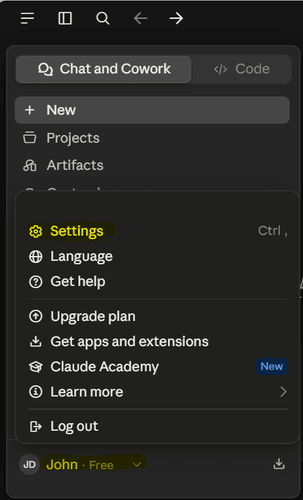
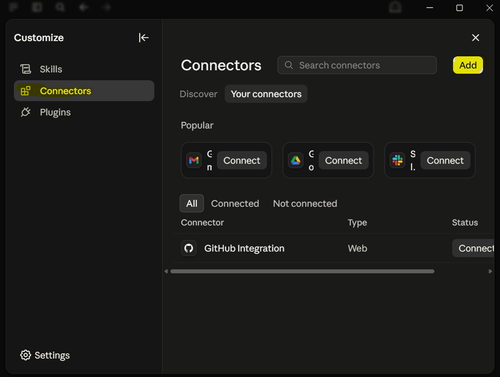
3. Search for "Customize" section and click the "Connectors" icon in the left navigation bar.
4. Click the "Add" Button in the top right corner.
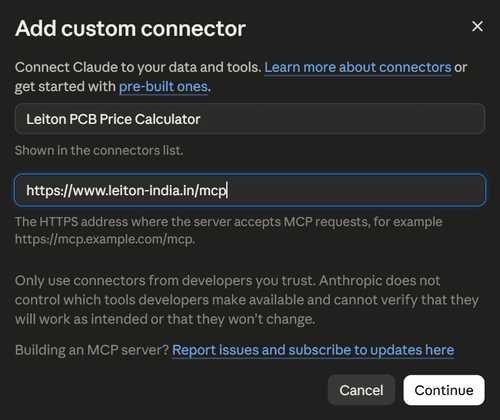
5. Enter the Leiton connector details
Enter the following information:
| Connector name | Leiton PCB Price Calculator |
| Connector URL | https://www.leiton-india.in/mcp |
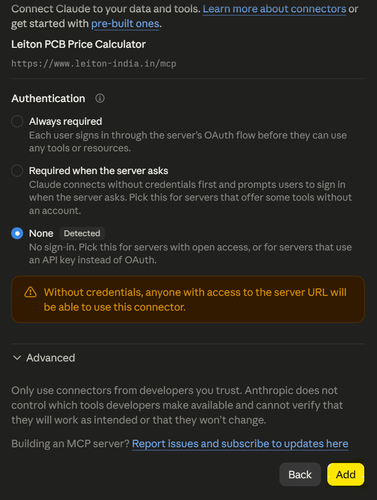
6. In the following Dialog, keep "None" set as the Authentication method and Click "Add".
7. Confirm by clicking "Connect", if you see the following message:
"You’re not connected to Leiton PCB Price Calculator yet."
8. Verify MCP tools and configure approval handling
Please verify that you can see the following tools provided by the Leiton PCB calculator:
- Calculate PCB price
- Inspect calculator capabilities
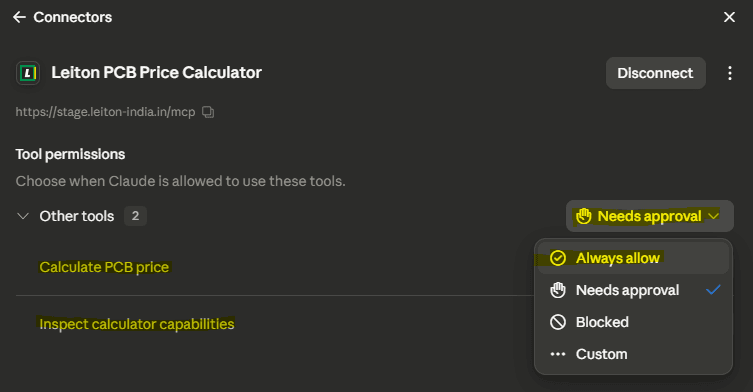
Tip: For the best experience, we recommend switching approval rules to "Always allow" in the top-right dropdown menu. Otherwise you will have to manually approve the tool usage everytime your AI agent wants to access the Leiton MCP server.
9. Ask Claude about your PCB
Describe the PCB you need in your own words. Claude can check the available configuration options, ask for missing information and request a non-binding price from Leiton.
I need 25 rigid PCBs named “Sensor Prototype”. They should measure 100 × 80 mm, have four layers and an ENIG surface finish. Please calculate a non-binding price with Leiton.
If your specifications require an individual quotation, Claude can also provide a link that takes you to the appropriate Leiton inquiry.
Note: When Claude uses the tools provided by the Leiton MCP server for the first time, it might ask you to approve the tool access. You can respond with "Allow always" to prevent those messages from reappearing.
ChatGPT Desktop App
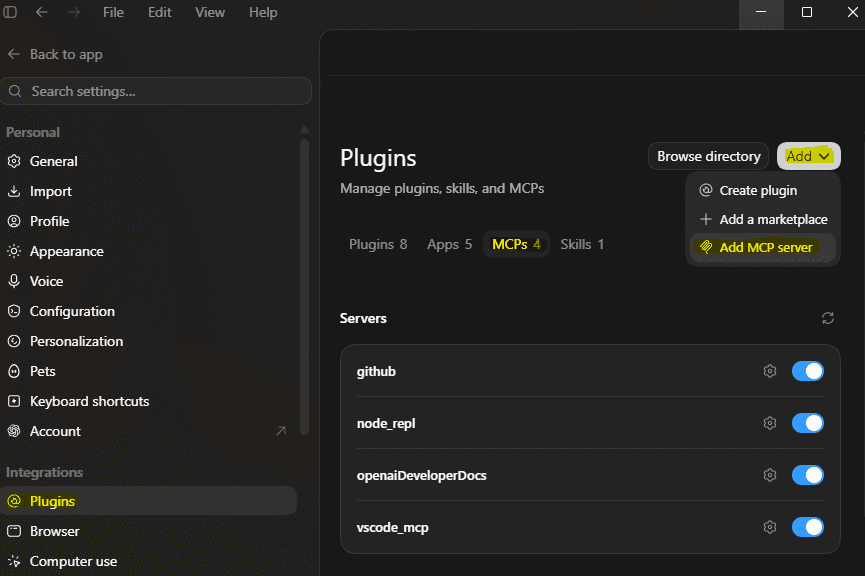
1. Click your profile menu in the lower-left corner and open "Settings"
2. Add a new MCP Server:
- Select "Plugins" from the "Integrations" section
- Select the "MCPs" tab
- Click the "Add" Button and select "Add MCP Server"
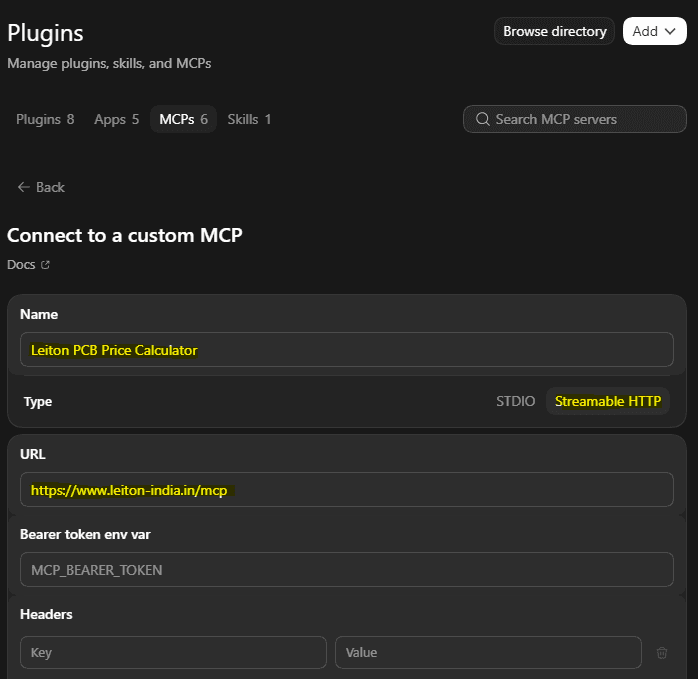
3. Enter the Leiton connector details:
| Name | Leiton PCB Price Calculator |
| Type | Streamable HTTP |
| URL | https://www.leiton-india.in/mcp |
If you cannot see the "URL" field, set the Type to "Streamable HTTP" first. You can leave all remaining fields untouched.
Click on "Save" to add the connector. This may take some seconds.
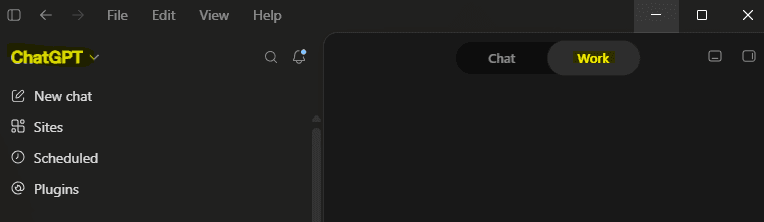
4. Make sure you are using ChatGPT in "Work" Mode:
5. Ask ChatGPT about your PCB
Describe the PCB you need in your own words. ChatGPT can check the available configuration options, ask for missing information and request a price from Leiton. Example:
"I need 25 rigid PCBs. They should measure 100 × 80 mm, have four layers and an ENIG surface finish. Please calculate a price with Leiton."
If your specifications require an individual quotation, ChatGPT can also provide a link that takes you to the appropriate, prefilled Leiton inquiry.
Visual Studio Code
If you use AI chat in Visual Studio Code, you can add the Leiton MCP Server directly. No local server package is required.
Add the Leiton MCP Server to VS Code
- Select the integration link above.
- Allow your browser to open Visual Studio Code.
- Review the displayed server configuration.
- Confirm that you trust the server and start it.
- Open AI chat in Agent mode and make sure the Leiton tools are enabled.
If the link does not open, use the VS Code Command Palette and select MCP: Add Server. Choose an HTTP server and enter:
https://www.leiton-india.in/mcp
For further information, see the VS Code MCP documentation.
Please note: Claude, ChatGPT, Visual Studio and VS Code are trademarks of their respective owners. This page is not affiliated with, endorsed by, or sponsored by Anthropic, OpenAI or Microsoft. Screenshots are used for instructional purposes only. All product names and logos are the property of their respective owners.